Google Slides is great for presentations, but it has one small limitation that catches many people off guard. Unlike Google Docs, there isn’t a built-in word count feature sitting in the menu waiting for you to click it.
That becomes a problem when you’re working with presentation scripts, school assignments, client pitches, or conference slides that need to stay within a specific word limit. You might spend an hour polishing a deck only to realize you have no easy way to check how much text you’ve actually written.
The good news is that checking word count on Google Slides is still possible. You just need to use a few simple workarounds.
Whether you’re a student preparing a class presentation or a professional building a slide deck for a meeting, here’s how to see word count on Google Slides without wasting time.
Why Word Count Matters in Google Slides
Presentations aren’t usually judged by word count alone, but the amount of text on your slides affects everything.
Too many words can overwhelm your audience. Too few can leave important points unexplained. If you’re presenting live, word count can also help estimate speaking time.
For example, a presenter speaking at a normal pace typically covers around 120 to 150 words per minute. If your slide content and speaker notes contain 1,500 words, you can roughly expect a presentation length of around 10 to 12 minutes.
That’s why many people want a quick way to measure the amount of text inside a slide deck.
Unfortunately, Google Slides doesn’t currently offer a dedicated word counter.
The Simple Copy-and-Paste Method
The easiest solution is to copy your text into Google Docs.
Here’s how it works:
- Open your Google Slides presentation.
- Select the text from the slides you want to count.
- Copy the text.
- Open a new Google Docs document.
- Paste the content.
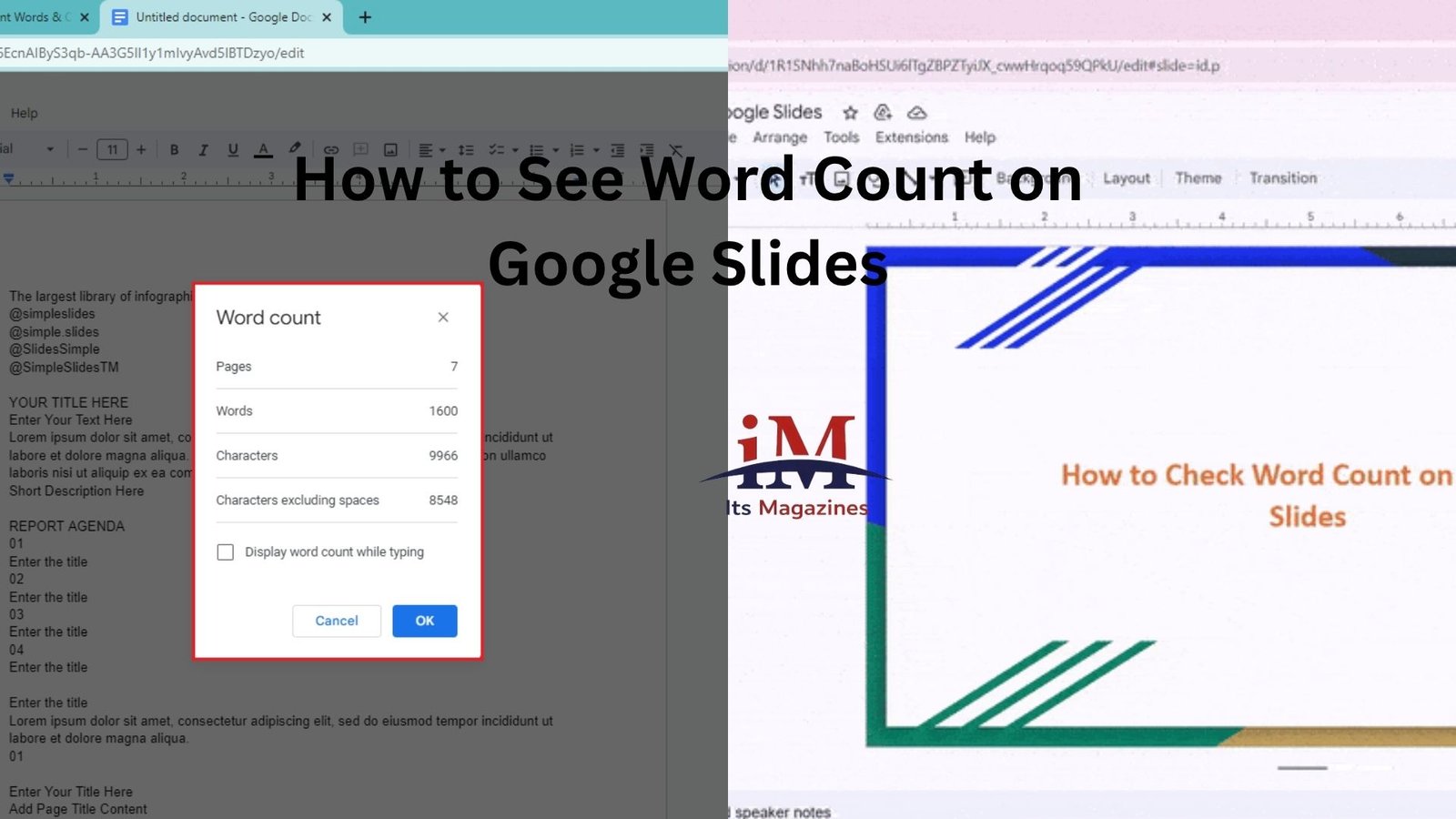
- Click Tools and then Word Count.
Google Docs will instantly show:
- Total words
- Characters
- Characters excluding spaces
- Page count
For most users, this is the fastest and most reliable option.
Let’s say you’re creating a 20-slide sales presentation. Instead of manually counting anything, you can copy all slide text into a temporary Google Doc and get an accurate count in seconds.
It’s not elegant, but it works remarkably well.
Using Speaker Notes for a More Accurate Count
Sometimes the slides themselves don’t tell the whole story.
Many presenters keep detailed scripts inside speaker notes. In fact, the notes often contain far more text than the actual slides.
If you’re trying to estimate presentation length or prepare for a speech, counting only the visible slide text may give you an incomplete picture.
A better approach is to include speaker notes in your count.
Open each slide’s notes section and copy the content into Google Docs along with the slide text. Then use the Word Count tool in Docs.
This gives a much clearer picture of the total amount of material you’ll actually present.
For speakers preparing conference talks or training sessions, this method is usually more useful than counting slide text alone.
Downloading as Text-Based Formats
Another option involves exporting your presentation.
Google Slides allows you to download presentations in several formats, including Microsoft PowerPoint.
After downloading, you can open the file in software that offers additional text analysis tools.
Some users export content into editable formats, collect the text, and then run a word count using Microsoft Word or Google Docs.
This approach takes a little longer, but it can be useful when you’re dealing with large presentations containing dozens or even hundreds of slides.
If you’re only checking a small deck, the copy-and-paste method is usually faster.
Can You Use Google Slides Add-ons?
Many people assume there’s an add-on that instantly solves the problem.
There are presentation-related extensions and productivity tools available through Google Workspace, but dedicated word count tools for Slides are surprisingly limited.
Even when third-party tools are available, they often require permissions or access to your Google account.
For most users, installing extra software simply isn’t worth the effort when copying text into Google Docs takes less than a minute.
Unless you frequently work with large presentation libraries, sticking with built-in Google tools is often the safer choice.
How to Count Words in an Entire Presentation
When you’re working with a large slide deck, manually selecting text from every slide can become tedious.
A practical approach is to collect all text at once.
You can:
- Open each slide in outline view if available.
- Copy text slide by slide into a document.
- Include speaker notes if needed.
- Run a single word count in Google Docs.
This gives you a count for the entire presentation rather than individual slides.
Many educators use this method when reviewing student presentations because it provides a quick overview of how much content is included.
It also helps identify presentations that may be overloaded with text.
Estimating Speaking Time from Word Count
Here’s where word count becomes especially useful.
Many presenters aren’t actually concerned with the number itself. They’re trying to answer a different question:
“How long will this presentation take?”
Word count provides a surprisingly reliable estimate.
General speaking speeds look something like this:
- 100 words per minute for slow presentations
- 120 to 150 words per minute for average presentations
- 160 to 180 words per minute for fast speakers
Imagine your speaker notes contain 2,000 words.
At an average pace of 130 words per minute, your presentation will likely run around 15 minutes.
Of course, pauses, audience questions, demonstrations, and transitions can affect timing. Still, word count offers a useful starting point.
When presentation timing matters, checking word count can save you from running over schedule.
Common Mistakes When Checking Word Count
One mistake people make is counting only what’s visible on the slides.
The reality is that presentations often include significant content hidden elsewhere.
Speaker notes, comments, and supplemental text may all contribute to the material you’re presenting.
Another common issue is copying slide titles but forgetting bullet points underneath.
Even small omissions can significantly affect the final count.
If accuracy matters, take a few extra moments to gather all relevant text before running the count.
It’s also worth remembering that visual-heavy presentations naturally contain fewer words. A deck filled with charts, screenshots, and images may communicate more information than a text-heavy presentation with double the word count.
Numbers tell part of the story, not all of it.
Alternatives for Measuring Presentation Length
Word count isn’t the only way to evaluate a Google Slides presentation.
Sometimes slide count offers a better benchmark.
For example:
- A five-slide presentation with detailed speaker notes may last 20 minutes.
- A 50-slide visual presentation may finish in 10 minutes.
That’s why experienced presenters often combine several measurements:
- Number of slides
- Total word count
- Speaker notes length
- Rehearsal timing
Together, these provide a much more realistic estimate than any single metric.
If you’re preparing for an important meeting or event, timing a practice run remains the most accurate method.
Still, word count is a useful shortcut during the planning stage.
Is There a Built-In Word Count Feature Coming?
Google regularly updates its Workspace apps, but as of now, Google Slides does not include a native word count feature like Google Docs.
Many users have requested it over the years because presentations increasingly contain scripts, educational materials, and detailed content.
For now, the simplest workaround remains copying text into Google Docs and using its built-in Word Count tool.
It takes only a few clicks and delivers accurate results without additional software.
The Bottom Line
If you’ve been searching for how to see word count on Google Slides, the main thing to know is that Google Slides doesn’t currently provide a built-in word counter.
That sounds inconvenient at first, but the workaround is straightforward. Copy your slide text, paste it into Google Docs, and use the Word Count feature there. If you want a more complete picture, include your speaker notes as well.
For most presentations, this method is fast, accurate, and easy to repeat whenever your content changes. And if you’re trying to estimate presentation length, word count can be a surprisingly useful planning tool.
Sometimes the simplest solution really is the best one.